Install your Serviti AI Agent everywhere your customers already are
Your AI Agent has its own link. Anyone who taps it can ask questions and leave their details, any time of day. Installing it on Instagram, WhatsApp or LinkedIn just means adding that link, so there is nothing to download. This guide shows you how to install the chat on your website, including WordPress, and share your link on Instagram, WhatsApp Business, LinkedIn, Facebook, Google, email and print. No technical skills needed. Each part takes about five minutes.
Before you start
- Sign in to Serviti at app.serviti.ai with your work email. On a phone, the Serviti menu is behind the ☰ button at the top of the screen.
- Have the Instagram, WhatsApp Business or LinkedIn app on your phone, signed in to your business account.
- Do each part on its own. You do not need to do them all at once, and you can come back to this page any time.
Part 1 · Get your AI Agent link
Use this public link for social profiles, messages and QR codes. To put the chat on your website, use the Agent ID or install code in Part 2.
Copy your agent link
- Sign in at app.serviti.ai.
- Open the menu and tap AI agents, then My agents.
- On your agent's card, tap Share, then Copy agent link. You will see "Agent link copied!".
- Paste it somewhere you can find it again, such as a WhatsApp message to yourself or a note on your phone.
Your link looks like
app.serviti.ai/your-business. It is the address of your own AI Agent, not of Serviti.Do not share
app.serviti.aion its own. That is the sign-in page for you and your team, so your customers would land on a sign-in screen. Always use the link from Copy agent link.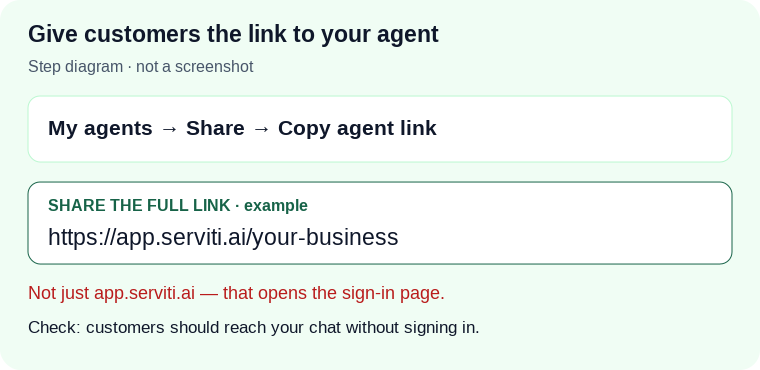
Step diagram. Copy your own agent link; the address shown here is an example. Open it once on your phone
Paste the link into your phone's browser and open it. Your AI Agent should open straight away. Ask it one question to check it answers. If it shows a sign-in screen instead, you copied the wrong link: go back to step 1.
Optional: make one link per place, so you can see which one brings people
A tracked link is a short link such as
serviti.ai/l/abc123that opens your AI Agent and counts every tap. Make one for each place you use, and Serviti shows you which place sends the most people. Any plan can make them. Only workspace admins can make or change them.- In the menu, tap AI agents, then Tracked links.
- Under Make a link, in Name, so you can tell your links apart, type where the link will go, for example Instagram bio.
- Next to Use your agent:, tap your agent's name. This fills in Where it goes for you.
- Tap Make link.
- On the new link, tap Copy link. Use this link in that one place.
- Repeat for each place: LinkedIn, WhatsApp greeting, Facebook button, Google profile, Flyer.
Come back to the same page later to see the taps for each link, by day, device and country. If you ever change your agent, edit where the link goes and every place you shared it keeps working, including printed flyers.

Part 2 · Your website
Put your AI Agent on your own website so visitors can ask questions without leaving the page. You need a Serviti account and an agent first, plus access to your website’s settings. No account yet? Start a free trial.
WordPress: use the Serviti AI Chatbot plugin
- In WordPress, go to Plugins → Add New Plugin, search for Serviti AI Chatbot, then click Install Now and Activate.
- In Serviti, open AI agents → My agents. On your agent, choose Install on website. Copy the Agent ID or the whole install code.
- Back in WordPress, open Settings → Serviti AI, paste it into Agent ID, and click Save Changes. If you paste the install code, the plugin extracts the ID for you.
- If you previously installed Serviti using WPCode, your theme or Google Tag Manager, remove or disable that old Serviti snippet. Keep just one installation method.
- Open a public page of your website, check that the chat appears once, and ask a question. Check on your phone too.
Your agent’s answers, knowledge, greeting and alerts are managed in Serviti. The WordPress plugin places that same agent on your website; it does not create another agent.
Shopify, Wix, Squarespace and other websites
Copy your install code from Install on website, then follow the instructions for your platform:
- Shopify: add the code to your live theme.
- Wix: add it through Custom code; a qualifying paid plan and connected domain are required.
- Squarespace: use Footer Code Injection on a plan that includes it.
- Google Tag Manager: publish a Custom HTML tag.
- Any website (HTML): add the snippet before the closing body tag.
Each link opens the matching step-by-step panel in the website setup guide. Use one installation method only, then check the chat on your published site.
Part 3 · Instagram
Do this in the Instagram app on your phone, signed in to your business account. Instagram lets you add up to five links to your profile.
Add your agent link to your profile
- Open Instagram and tap your profile picture at the bottom right.
- Tap Edit profile.
- Tap Links, then Add external link.
- In URL, paste your agent link.
- In Title, type the words people will see instead of the link, for example the wording below.
- Tap Done (on iPhone) or the ✓ tick (on Android), then go back to your profile.
Link titleChat with us 💬
If you have more than one link, only the first one shows on your profile; the rest are behind "and 1 more". In Links, press and hold your agent link and drag it to the top.
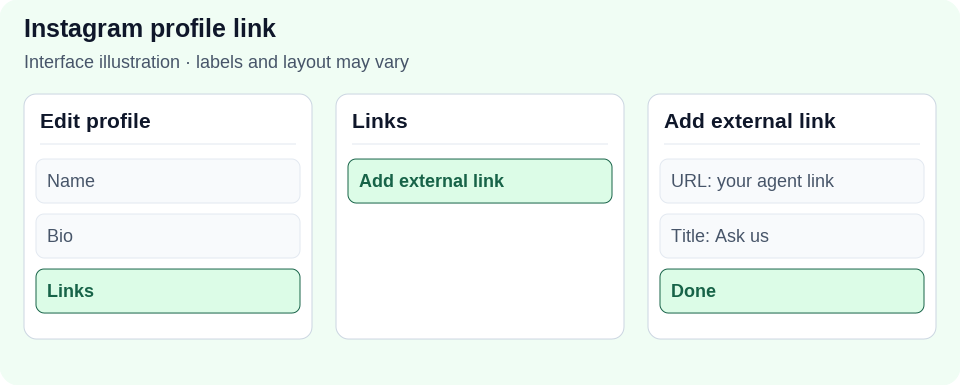
Interface illustration, not a screenshot. Labels and layout may vary by app version and account. Tell people what the link does
- In Edit profile, tap Bio.
- Add a line like the one below at the end of your bio. Bios can be up to 150 characters.
- Tap Done or ✓.
Bio lineQuestions? Tap the link below for instant answers, any time 👇
Share it in a story, then keep it on your profile
- Tap the + button and choose Story. Pick a photo of your shop, product or team.
- Tap the sticker icon (the square smiley face) at the top, then Link.
- Paste your agent link. Tap Customize sticker text and type Ask us anything.
- Tap Done, place the sticker, then tap Your story to share it.
- Stories disappear after 24 hours. To keep it: open the story, tap Highlight, name it Ask us, and tap Add. It now stays on your profile.
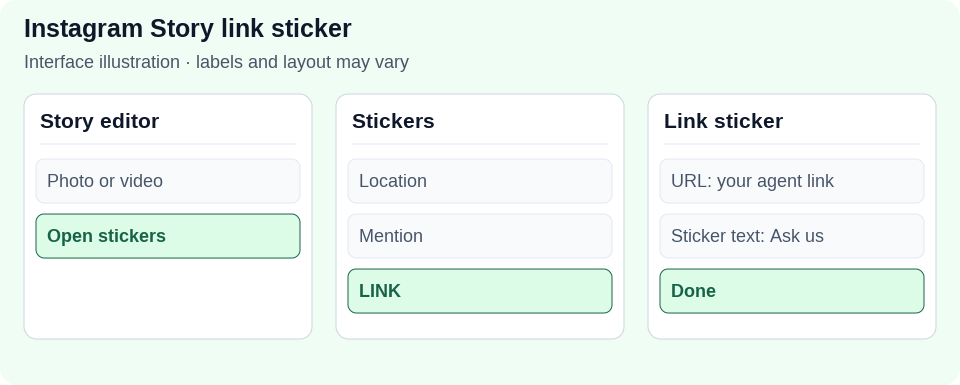
Interface illustration, not a screenshot. Labels and layout may vary by app version and account. Want the AI to reply inside Instagram messages too?
The steps above send people from Instagram to your AI Agent's page. If you would rather your AI Agent answered Instagram direct messages itself, that is the Instagram AI add-on. Follow the Instagram DM AI Agent setup guide.


Part 4 · WhatsApp Business app
These steps are for the WhatsApp Business app (the green app with a "B"). Do them on the phone that has your business number. In newer versions, the business settings are under the Tools tab; in older versions, tap ⋮ (Android) or Settings (iPhone), then Business tools.
Add the link to your business profile
- Open WhatsApp Business and go to Tools (or Settings → Business tools).
- Tap Business profile.
- Find Website and tap the pencil next to it.
- Paste your agent link and tap ✓ or Save.
Customers see it when they tap your business name at the top of a chat.
Your business profile can hold more than one website. If your own website is already there, keep it and add your agent link in the second website field.
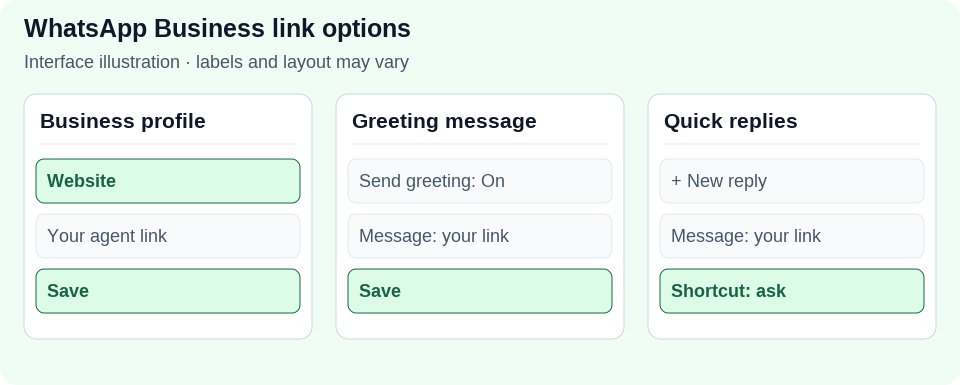
Interface illustration, not a screenshot. Labels and layout may vary by app version and account. Profile, greeting and quick replies are separate settings; see the steps below. Send the link automatically to new customers
A greeting message goes out by itself the first time someone messages you, or when they message again after 14 days.
- Go to Tools (or Business tools) and tap Greeting message.
- Turn on Send greeting message.
- Tap the message, replace it with the wording below, put your own link in, and tap OK.
- Tap Recipients, choose Everyone, and tap Save.
Greeting messageHello! Thanks for messaging us 🙏 For instant answers about our products, prices and timings, ask our AI assistant here: app.serviti.ai/your-business — it is open 24×7, and our team will also reply here soon.
Answer people outside working hours
- Go to Tools (or Business tools) and tap Away message.
- Turn on Send away message.
- Tap the message, replace it with the wording below, and tap OK.
- Tap Schedule and choose Outside of business hours. (If you do not see it, choose Always send for now, or first add your working hours in Business profile.)
- Tap Recipients, choose Everyone, and tap Save.
Away messageThanks for your message! We are away right now. Our AI assistant can answer your questions straight away: app.serviti.ai/your-business — we will reply here when we are back.
Greeting and away messages only send while your phone has internet. If you have switched on Meta's own AI for WhatsApp (Meta Business Agent), WhatsApp turns greeting and away messages off.
Make a shortcut so you can send the link in two taps
- Go to Tools (or Business tools) and tap Quick replies.
- Tap the + button.
- In Message, paste the wording below with your link.
- In Shortcut, type ask. Tap Save.
- In any chat, type / and pick your quick reply to send it.
Quick replyYou can get instant answers here, any time: app.serviti.ai/your-business
Post it on your status now and then
Open the Updates tab, tap the pencil, type a short line with your link, and send. Your status lasts 24 hours, so post it again when you run an offer.
StatusGot a question? Ask our AI assistant, it replies instantly 👉 app.serviti.ai/your-business
Want the AI to reply inside WhatsApp itself?
The steps above point people to your AI Agent's page. If you would rather your AI Agent answered on your WhatsApp number directly, that is the WhatsApp AI add-on. Follow the WhatsApp AI Agent setup guide.

Part 5 · Your personal LinkedIn profile
For owners, founders and sales people. Free LinkedIn accounts have two good places for a link: Contact info and the Featured section. Steps are given for the phone app and for a computer.
Add the link to your contact info
On your phone:
- Open LinkedIn and tap your profile picture at the top left, then tap it again to open your profile.
- Tap the pencil (Edit) next to your name and headline.
- Scroll down to Contact info and tap Edit contact info.
- Tap Add website. Paste your agent link in Website URL.
- In Website type, choose Company (or Other and type Ask us). Tap Save.
On a computer:
- Click Me at the top, then View profile.
- Click Contact info under your name, then the pencil in the window that opens.
- Click Add website, paste your agent link, choose a Website type, and click Save.
You can have up to three websites here, so you can keep your company website as well.
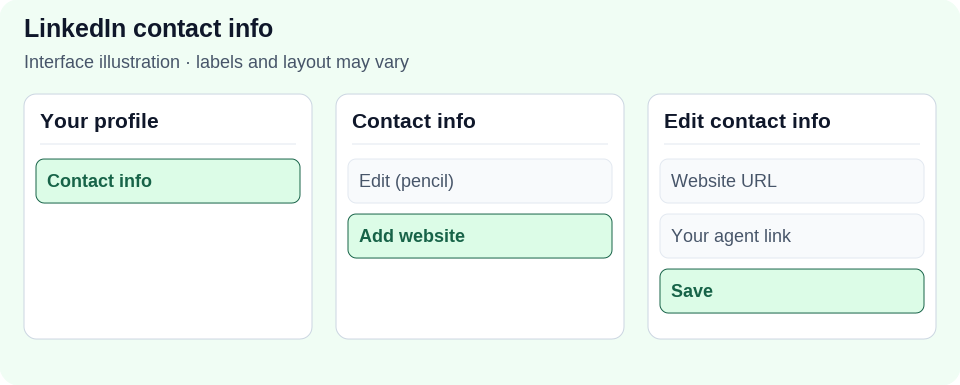
Interface illustration, not a screenshot. Labels and layout may vary by app version and account. Feature it at the top of your profile
The Featured section shows a card with a picture and a title near the top of your profile, where signed-in LinkedIn visitors can find it. Viewers must sign in to LinkedIn to see Featured content.
On a computer:
- Click Me, then View profile.
- Click Add profile section, open Recommended, and click Add featured.
- Click the + at the top right and choose Add a link.
- Paste your agent link and click Add. LinkedIn fills in a title and picture.
- Change the title and description to the wording below, then click Save.
On your phone: tap your profile picture, then View profile, Add section, Recommended, Add featured, and follow the same steps.
Featured titleAsk us about our products and services
Featured descriptionGet instant answers, any time, and tell us what you are looking for.
If LinkedIn will not add the link, or the card looks blank, use step 3 instead: try sharing a post with the link, then feature it if your account offers that option. Otherwise, keep the link in Contact info.
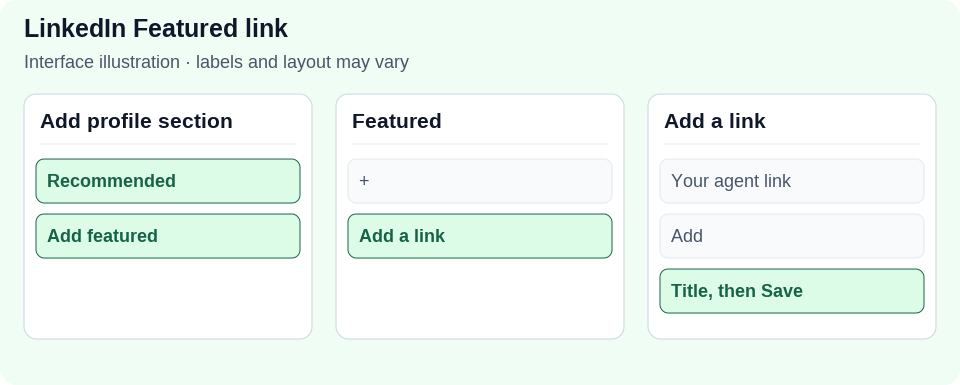
Interface illustration, not a screenshot. Labels and layout may vary by app version and account. Share a post with the link, then pin it
- Tap Post (phone) or Start a post (computer).
- Write a few lines using the wording below, with your link at the end, and post it.
- On your post, tap ⋯ (the three dots) and choose Feature on top of profile. If this option is available, the post appears in your Featured section. If it is missing, keep your link in Contact info instead.
PostWe now answer your questions any time, day or night. Ask about our products, prices or availability and get an instant answer, then leave your details and our team will follow up. Try it here 👉 app.serviti.ai/your-business


Part 6 · Your LinkedIn company page
You must be an admin of the company page. Steps are for a computer, where the page settings are easiest to reach.
Open your page as an admin
- Click Me at the top of LinkedIn.
- Under Manage, click your company page. You are now in the admin view (it shows Edit page on the left).
Add a button that opens your AI Agent
- Click Edit page on the left.
- Open the Buttons tab.
- Turn on Custom button.
- In Button name, choose Contact us (or Learn more).
- Paste your agent link in the URL box.
- Click Save.
On a phone: open the page admin view, tap Dashboard at the top left, then Edit page → Buttons, and follow the same steps.
On a free company page, visitors find this button under More on your page. A Premium Company Page shows it at the top. Posts (step 3) are another way to share your link, but LinkedIn does not show every post to every follower.
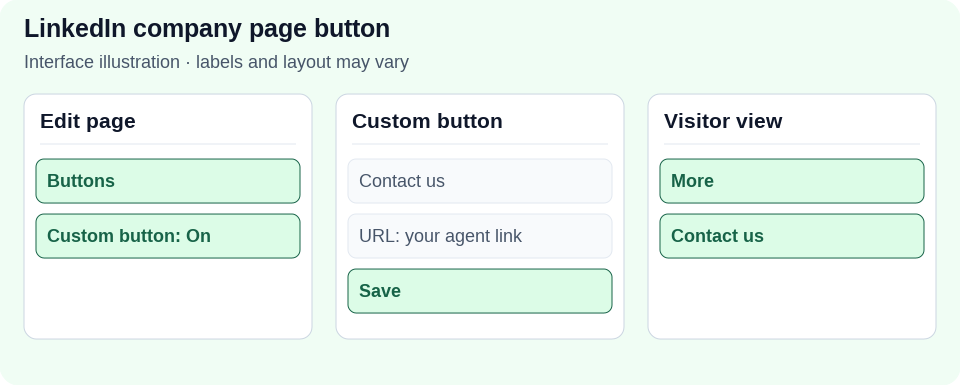
Interface illustration, not a screenshot. Labels and layout may vary by app version and account. On a free page, visitors open More to find the button. Post it on your page
From the admin view, click Create → Start a post, write a short post with your link, and post it. Do this again whenever you have news, an offer or a new product.
Company page postHave a question for us? Our AI assistant answers instantly, any time, about our services, prices and availability. 👉 app.serviti.ai/your-business
Keep your real website in the page's Website field. Only put your agent link there if you have no website.

Part 7 · Your Facebook page
You need admin access to the page. These steps use Facebook on a computer.
Point your page button to your AI Agent
- Log in to Facebook and click your profile picture at the top right.
- Click See all profiles and choose your page.
- Open your page.
- Under the cover photo, click Options (or the ⋯ button), then Add action button. If your page already has a button, it says Edit action button.
- Choose a button that opens a website, such as Learn more, and click Next.
- Paste your agent link when it asks for a website, then click Save.
A page can have one action button. It shows at the top of your page, next to Message and Follow.
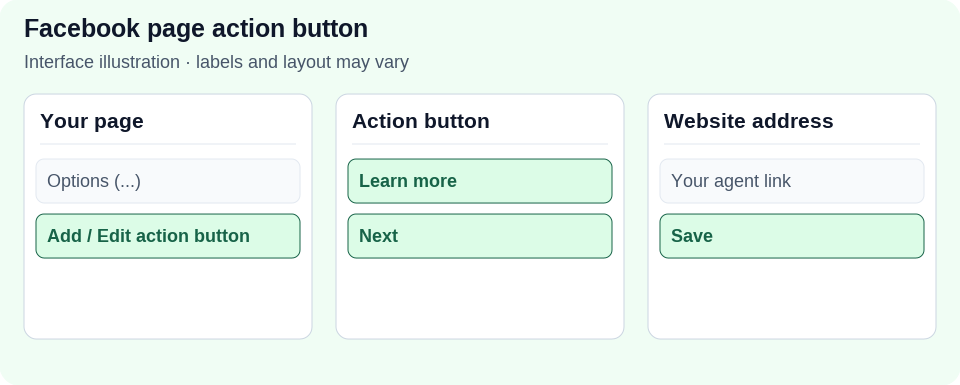
Interface illustration, not a screenshot. Labels and layout may vary by app version and account. Post it and pin the post to the top
- Write a post on your page with the wording below and your link, and publish it.
- On the post, click ⋯ and choose Pin post. It now stays at the top of your page.
Facebook postQuestions about our products, prices or timings? Ask our AI assistant and get an answer straight away, day or night 👉 app.serviti.ai/your-business
Using Instagram too?
Facebook and Instagram are separate. Add the link to Instagram as well, using Part 3.

Part 8 · Google Maps and Google Search
Help people who find your business on Maps or Search reach your AI Agent. You need to manage a claimed and verified Google Business Profile. The same profile appears on Maps and Search: you do not need a separate agent for each.
You cannot install the Serviti website widget inside Google Maps. Instead, give visitors a route to your website chat, your public agent link, or your connected WhatsApp agent.

Link your website from Google Maps
If you have a website, keep it in the Website field and install the Serviti widget there. Visitors tap Website in Maps, open your site and can ask your agent a question.
On your phone:
- Open Google Maps, signed in with the Google account that manages your business.
- Tap Business at the bottom right. Choose your business if you manage more than one.
- Tap Edit profile, then find Website under the contact details.
- Check the full address of your business website and tap Save.
On a computer: open your Business Profile, choose Edit profile, and update the Website field. Labels may vary by device.
Do not replace a working business website just to add chat. If you have no website, use a post below to share your public agent link without presenting it as a booking page.
Share your agent link in a Google post
- Open your Business Profile with the account that manages it.
- Select Posts → Add post → Update. Some versions may say Add update.
- Write a short update using the wording below.
- Add a button, choose Learn more, and paste the full public URL from Serviti’s Copy agent link.
- Select Post or Publish. Google reviews posts; approved posts can appear on your profile in Search and Maps.
Google updateHave a question about our services, prices or timings? Chat with our AI assistant any time. If you need our team, leave your contact details in the chat.
Put your own agent link in the button URL, not in your Google business description. If Posts is unavailable for your category or profile, use the website route instead.
Optional: add WhatsApp chat to your profile
Google offers Chat on some verified profiles and in selected regions. If your business already has its WhatsApp AI Agent connected to Serviti, this can send Maps and Search visitors to that agent.
- Open your Business Profile and choose Edit profile → Contact.
- If Chat appears, select its edit control and choose WhatsApp.
- Add the WhatsApp click-to-chat URL for the same business number connected to Serviti. Make one with the WhatsApp link generator.
- Save. Once approved, check the public profile to see the contact option.
Use a WhatsApp link here, not your
app.serviti.ai/your-businessURL. Adding the link does not switch on AI: the Serviti WhatsApp AI add-on and channel connection must already be active. If Google does not offer Chat, use a post or your website.
Do not put an enquiry-only chat in Booking or Appointment fields. Those links must let visitors complete the booking action. Collecting dates and a callback request in Serviti is not a confirmed booking.
Google’s instructions: Edit your profile on Maps or Search · Create a post · WhatsApp chat · Booking-link rules. Checked 21 November 2026.
Part 9 · Email signature, YouTube and X
Small places that every customer sees again and again.
Add a line to your email signature
Gmail on a computer: click the ⚙ at the top right, then See all settings. On the General tab, scroll to Signature, click Create new, paste the line below, and click Save changes at the bottom.
Gmail app: tap ☰ → Settings → your email address → Mobile signature (Android) or Signature settings (iPhone).
Outlook on the web: click the ⚙ at the top right → Account → Signatures, add a new signature with the line below, and click Save.
Signature lineQuestions? Get instant answers any time: app.serviti.ai/your-business
YouTube channel and videos
On a computer, open YouTube Studio, click Customization, then Basic info. Under Links, click Add link, type a title such as Ask us anything, paste your agent link, and click Publish. Also paste the link near the top of each video description.
X (Twitter)
Open your profile, tap Edit profile, paste your agent link in Website, and tap Save.
Part 10 · QR code for your shop, flyers and visiting cards
A QR code lets people open your AI Agent by pointing their phone camera at it.
Download your QR code
- In Serviti, tap AI agents → My agents.
- On your agent's card, tap Share → Download QR code. A picture file downloads to your phone or computer.
Want to count scans? Make a tracked link for it instead (Part 1, step 3) and tap Download QR code on that link. Scans then show up in Tracked links.
Print it so it scans every time
- Print it at least 2 cm × 2 cm (about the size of a postage stamp). Bigger for posters and boards people see from far away.
- Keep it dark on a white background, with a white border around it. Do not stretch it or put it on a photo.
- Put a short line next to it, such as the wording below.
- Before printing many, print one and scan it with two different phones.
Next to the QR codeScan to ask us anything. Instant answers, any time.
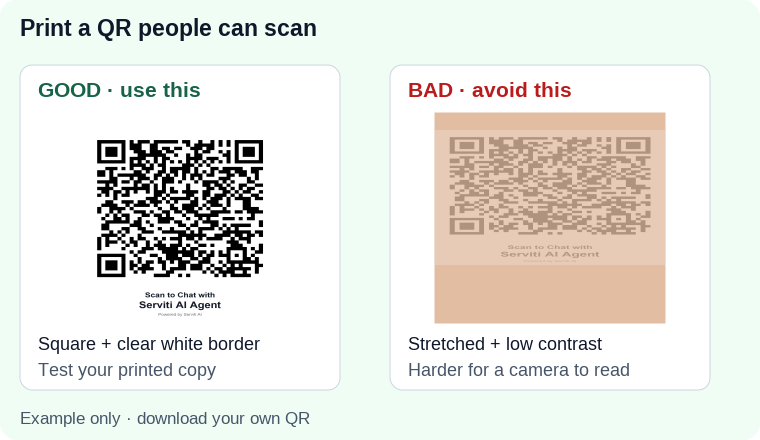
Print comparison using an example code. Download your own agent QR code and test a printed copy before printing more.

Not working? Check these
The link opens a Serviti sign-in page
You shared the address of the Serviti app, not your AI Agent. In Serviti, go to AI agents → My agents, tap Share → Copy agent link, and use that link instead.
Instagram or LinkedIn will not accept the link
Paste the whole link, starting with https://. Check there is no space at the start or end. On LinkedIn, if Featured will not take it, try sharing a post with the link and featuring it if that option is available (Part 5, step 3). Otherwise, use Contact info.
My Google change is not showing
Google reviews changes to Business Profiles before they appear, which can take a few days. Your profile must also be verified.
People tap the link but no leads appear
A visitor becomes a lead when they leave their name and contact details. To see how many people tapped each place, use tracked links (Part 1, step 3). To read the chats themselves, open Customer enquiries → Conversations (Growth and Scale plans).
The WhatsApp greeting or away message is not sending
Your phone needs internet for them to send. Greeting messages only go to people messaging you for the first time, or after 14 days. If Meta Business Agent is switched on, WhatsApp turns these messages off.
I see two chat buttons on my website
Serviti may be installed twice. If you use the WordPress plugin, remove or disable the old Serviti snippet in WPCode, your theme or Google Tag Manager. Keep the plugin or the snippet, not both. Do not remove code for other services. Clear your website cache if you use one, reload a public page and check again.
Still stuck?
In Serviti, tap Get help at the bottom of the menu and tell us which part and step you are on. A screenshot helps.
Next: get the most from your Serviti AI Agent
Your link is out there. Now make sure every enquiry reaches you and your agent keeps getting smarter.